In this article, we will cover how to move your residential internet service using the MySavvy self-service portal.
What you will need before you begin:
- MySavvy Login
- Your new service address.
- Your preferred move date.
Important Notes
- Don’t place your move until you are sure when and where you are moving. Once we place a move it can not be reversed.
- To have the best chance of obtaining your requested date we need at least 7-10 business days’ notice. Moves take a minimum of 5 business days to book.
- All dates are tentative, and your requested date may not be available. We will contact you with the confirmed date within 24-48 business hours after the request is received.
- If a technician is required to visit, someone over the age of 18 will need to be available.
- Technicians will only activate the service line; hardware setup will be your responsibility. Run into issues setting the service up? No worries, simply contact an agent for support.
- Don’t leave your equipment behind! Take all your hardware, cords, and cables with you as you will need this at your new location.
- Moving to a multi-dwelling apartment or condo? Please make sure that you can access any communication rooms (if applicable). Make sure that a letter of permission for drilling or extra work is on hand from your building manager before the appointment. Make sure you check with your building manager in advance about their telecom installation process.
How to Move Your Service in MySavvy
- Log into your MySavvy Account
- Click on My Services on the left-hand menu.
- Select the service you would like to move
- Select Change Service
- Select Move My Address
- In the Where do you want us to set up your internet service? field enter your new service address and enter unit type and number if applicable.
- Select Next Step
- Select the package you would like at your new address.
- Select Next Step
- If applicable you will be provided with hardware requirements for your new package. Select your hardware and select Next Step
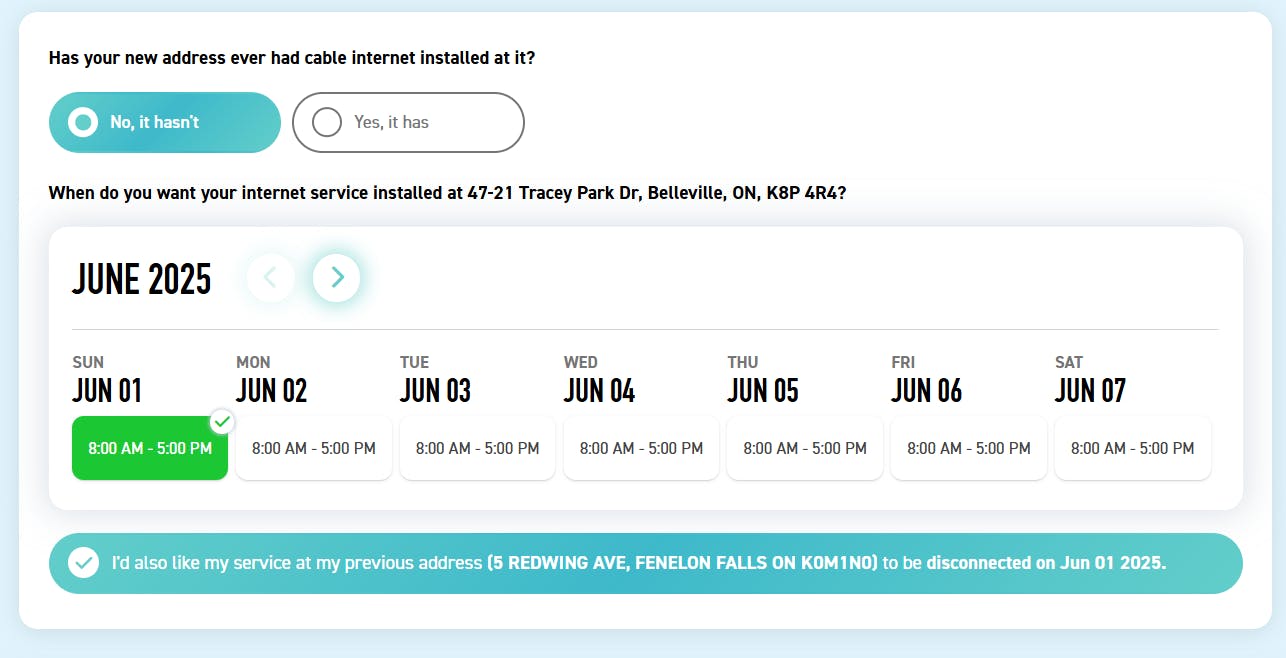
- Enter your requested activation date and time from the calendar
- Select Next Step
- Review your Service fees and Terms of Service
- Ready to submit? Click Submit Order
- You are all set! We will contact you with the confirmed date within 24-48 business hours after the request is received.